

Automatic Trading Software (EA)
Automatic Trading Software refers to trading conducted automatically by a system based on a program.
Automatic trading software is commonly referred to as EA.
The system automatically trades based on trading rules set by the user.
MT5, like MT4, also supports automatic trading through Expert Advisors (EA).
Advantages of Automatic Trading Software (EA)
IS6FX does not impose any restrictions on the use of EAs.
One of the advantages of using automatic trading on MT4 and MT5 is that the system will execute orders automatically 24 hours a day, even when the trader is unable to monitor the screen.
There are opportunities to make significant profits from large market fluctuations.
By incorporating automatic trading in MT5, the system will execute trades automatically according to the program without you having to constantly monitor your computer.
Moreover, compared to discretionary trading, automatic trading follows predetermined rules, so it is not influenced by emotions or opinions, and you won't miss the timing.
Automatic stop-loss orders are also executed, enabling planned trading.
※Please note that some Expert Advisors (EAs) may not be compatible with MT5. Be sure to check in advance.
Disadvantages of Automatic Trading Software (EA)
Automatic trading also has its disadvantages.
Markets constantly alternate between "range" and "trend" phases.
It is generally said that the market is in a "range" 70-80% of the time and in a "trend" 20-30% of the time.
Automatic trading systems are programmed to anticipate one of these scenarios.
In other words, a program designed for range markets may incur losses during trending, while a program designed for trending may suffer small losses in range-bound markets.
By understanding the advantages and disadvantages of EAs and using automatic trading in a way that suits your FX trading style, you can mitigate risks and stabilize profits.
How to Install EA on MT5
(1) Install EA
Anyone can create an EA using programming, but it is common to purchase paid EAs or optimize free EAs for trading.
※Only EA files with the ".ex5" extension are compatible with MT5.
(2) Open the Data Folder
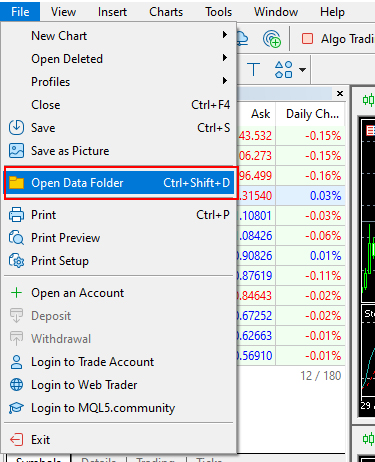
Launch MT5, and click "Open Data Folder" from the "File" menu.
(3) Select the MQL5 Folder
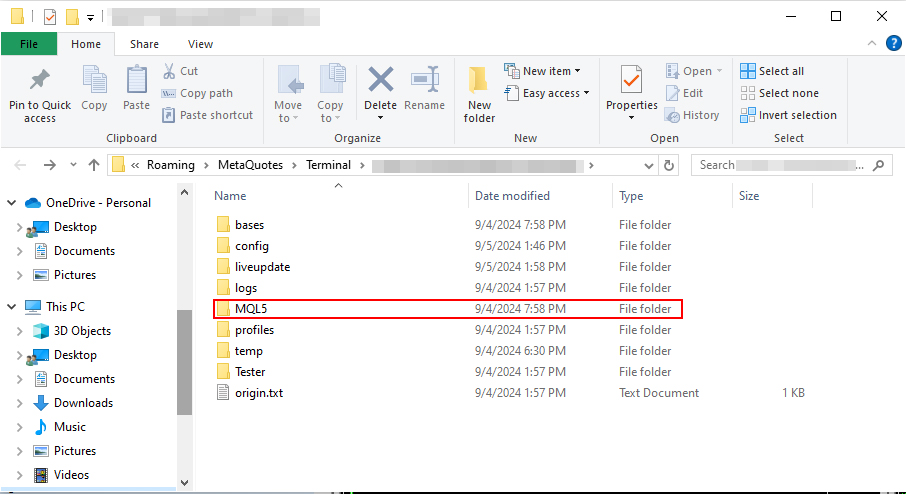
Once the folder opens, double-click the MQL5 folder.
(4) Complete the EA Installation
Double-click the Experts folder inside the MQL5 folder and move the prepared EA file to the Experts folder.
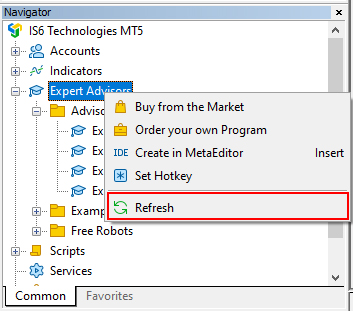
If the added EA does not appear, right-click on the Navigator and select "Refresh."
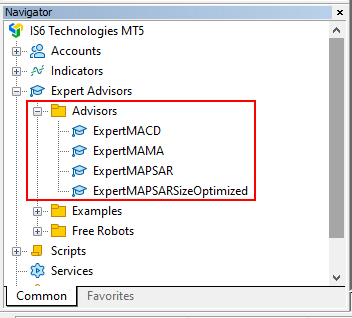
If the installed EA appears in the Expert Advisors section of the Navigator window, the EA installation on MT5 is complete.
EA Backtesting
Backtesting is a feature that allows you to simulate automatic trading by running an EA on historical chart data.
It is recommended to check the performance and operation before running it on a live account.
Be sure to conduct a backtest before starting operation.
(1) Test with Strategy Tester
Backtesting is done by running historical charts using the Strategy Tester.
Click "Strategy Tester" from the "View" menu.
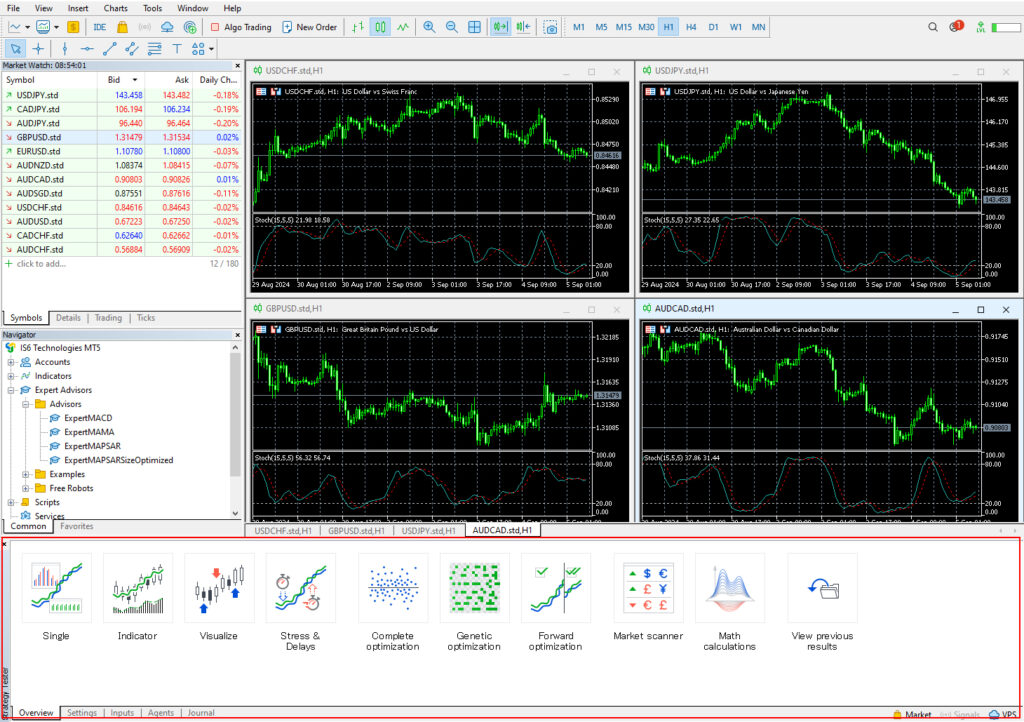
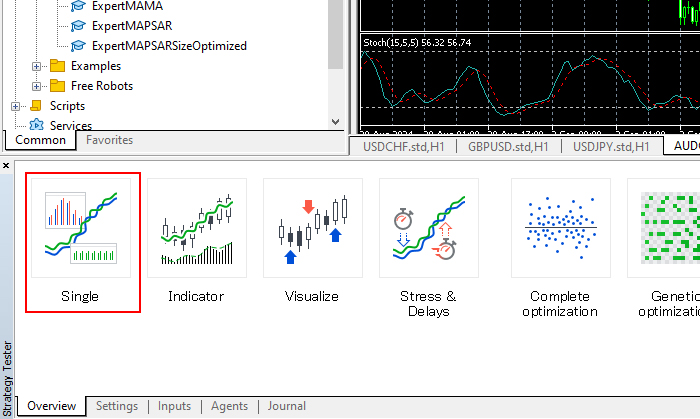
Select "Single" for testing the EA.
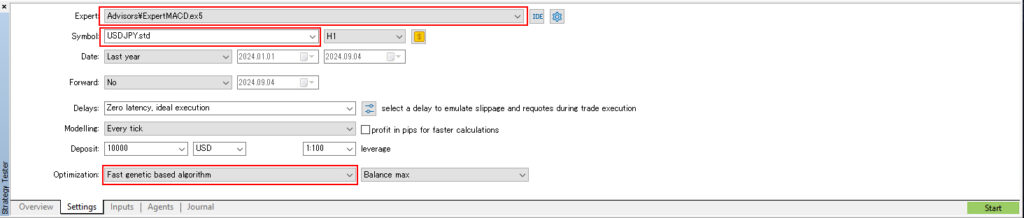
Choose the EA from the Expert section, select the asset, and adjust the period and other settings as needed.
This setting determines whether or not to optimize the test.
The optimization setting affects the time the test takes and the accuracy of results.
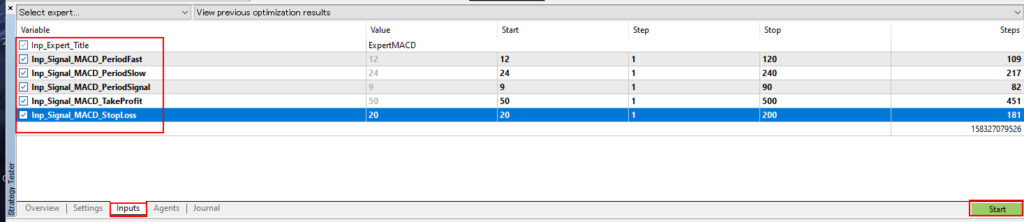
If the Optimize setting is not disabled, you can configure parameters.
Adjust as needed, and if there is no problem, click Start.
The backtest will begin.
The green progress bar indicates progress, and when it reaches the far right, the test is complete.
(2) Check Backtest Results
Once the backtest is complete, review the results in the graphs and reports.
Check profits, number of trades, and ensure there are no errors in lot size settings.
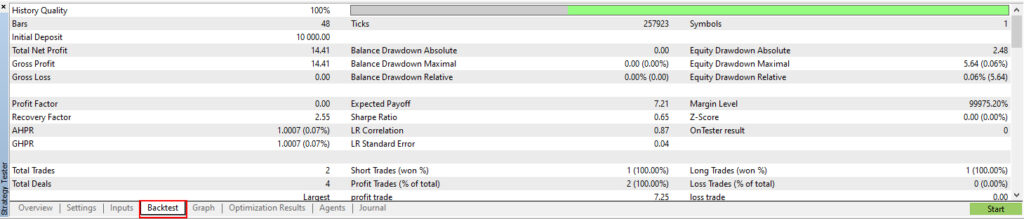
You can also scroll through additional information and review equity and balance graphs in the "Graph" tab.
Turning EA On/Off
Clicking the auto trading button will activate the EA.
To stop the EA, click the button again to turn off auto trading.
(1) Turning On Auto Trading
When auto trading is off (indicated by a red icon), click to turn it on (indicated by a green icon).
(2) Turning Off Auto Trading
When auto trading is on (green icon), click to turn it off (red icon).
Even if the EA is set up, no trades will be executed when auto trading is off.
Setting EA Parameters
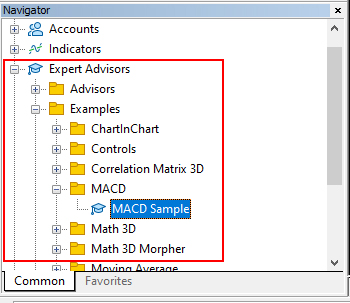
(1) Drag and Drop EA Onto Chart
Display the chart for the currency pair and time frame where you want to run the EA.
From the Expert Advisors section in the Navigator window, select the EA and drag it onto the chart.
(2) EA Settings
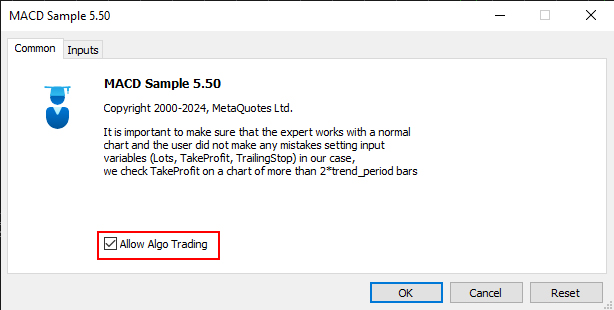
In the window that appears, check "Allow Algorithmic Trading" under "Common."
If parameter settings are necessary, click the Inputs tab and configure as needed.
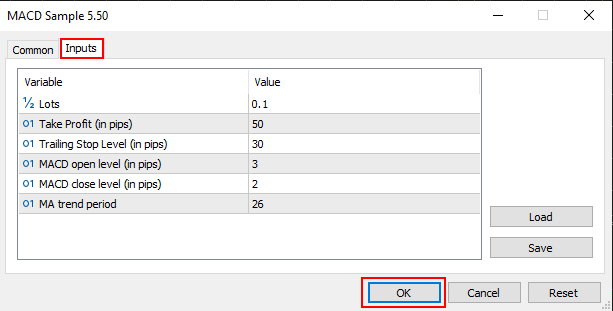
Click OK to start the automatic trading program.
Confirming EA Operation
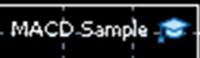
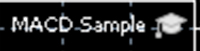
You can check the status of the EA in the upper-right corner of the chart where the EA is applied.
Make sure the "Auto Trading" button is enabled if you want the EA to operate.
(1) EA Running
(2) EA Not Running
Please note that our company does not take responsibility for the operation or trading results of any EA.
Please make sure to check the operation and performance yourself and run the EA at your own risk.