

Watch the video to see how to trade
[1] Display the Order Screen from the Chart
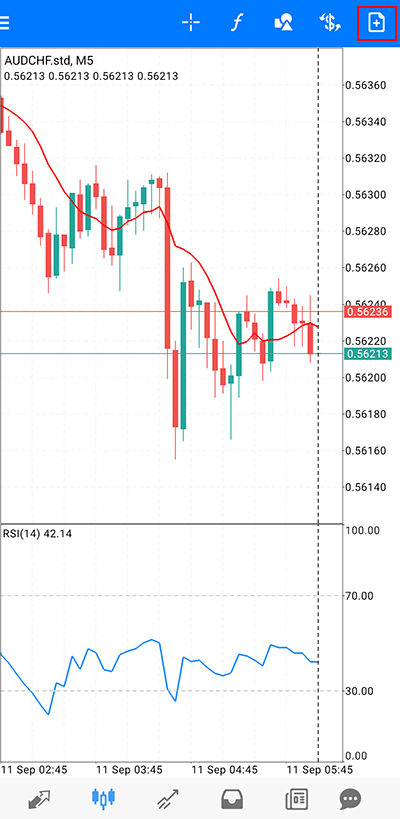
(1) Tap the "Order" button on the chart screen.
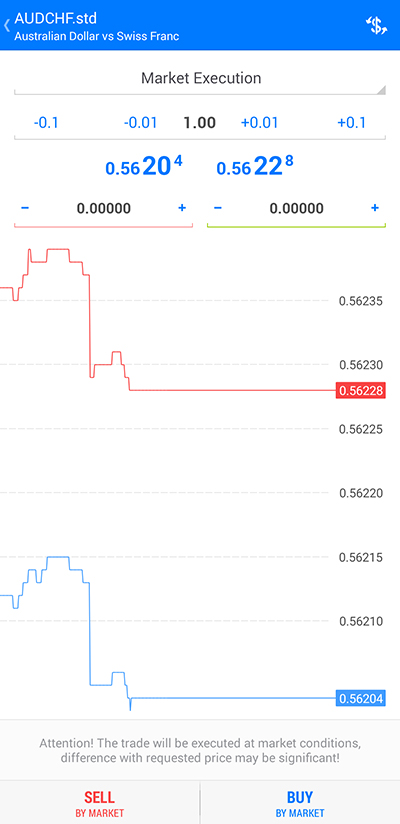
(2) The order screen will be displayed.
[2] Display the Order Screen from the Quote Prices
(1) Display the quote prices screen.
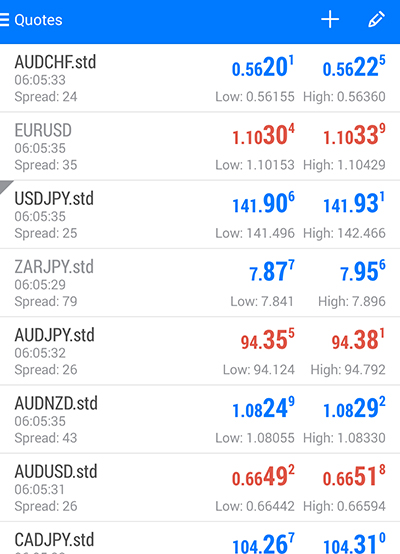
(2) Long-press the currency pair you want to order.
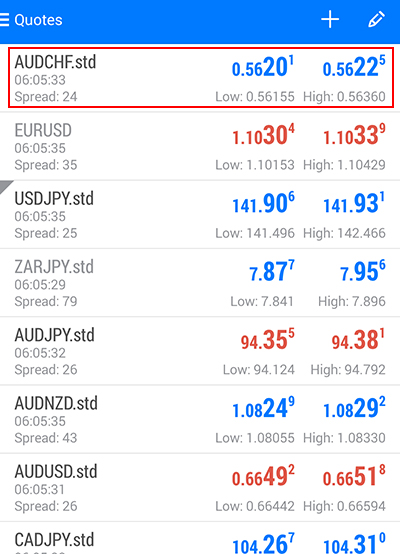
(3) Select "New Order."
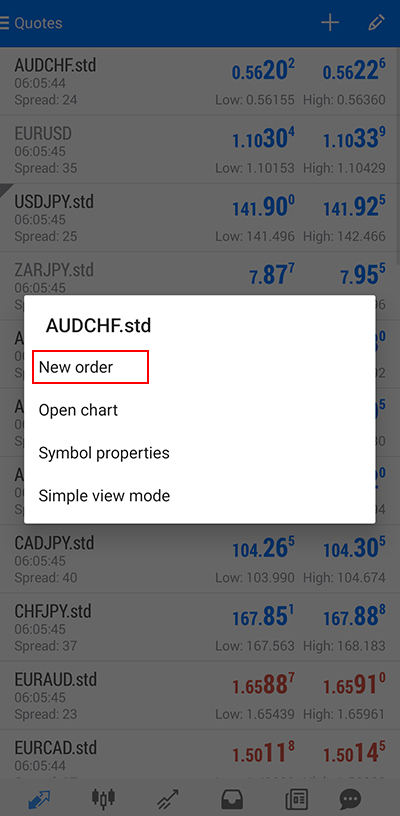
(4) The order screen will be displayed.
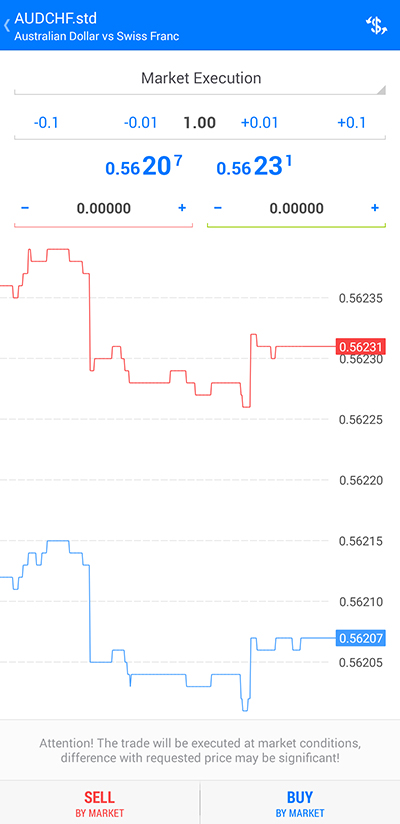
[3] New Market Order
(1) On the order screen, select the trade volume, order type, and settlement order (optional).
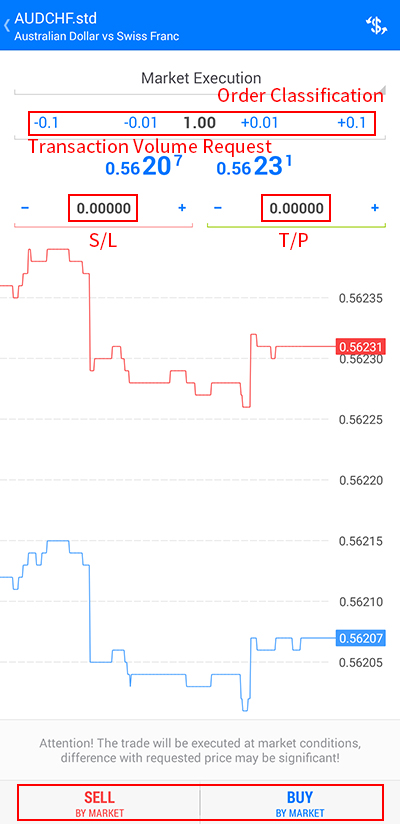
(2) Tap "SELL" for a sell order or "BUY" for a buy order.
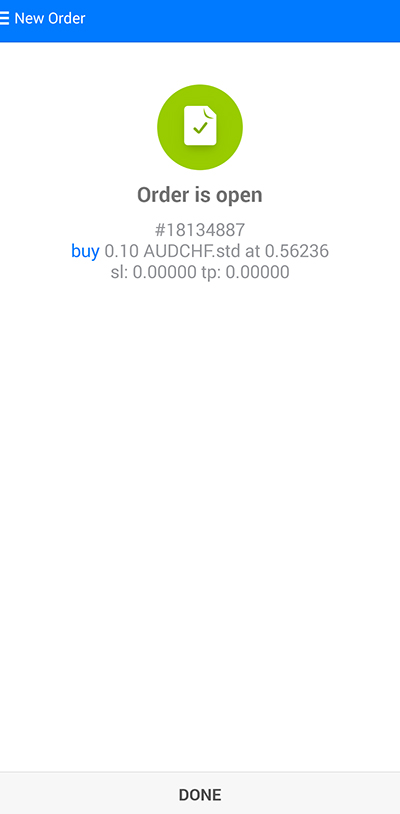
Trade Volume: 0.01 lot = 1,000 currency units, 0.1 lot = 10,000 currency units, 1 lot = 100,000 currency units.
※If placing a settlement order (Stop or Limit) simultaneously, input the stop rate on the left and the limit rate on the right, then tap "SELL" or "BUY."
※Slippage settings cannot be configured.
[4] New Limit Order/Stop Order
(1) Select the trade volume and tap the order type.
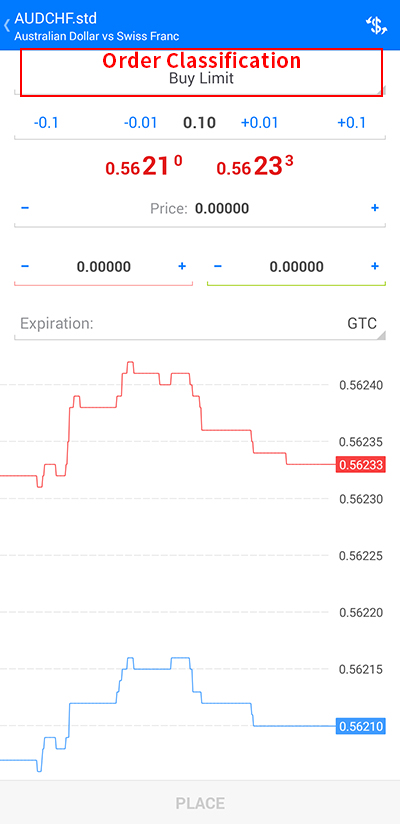
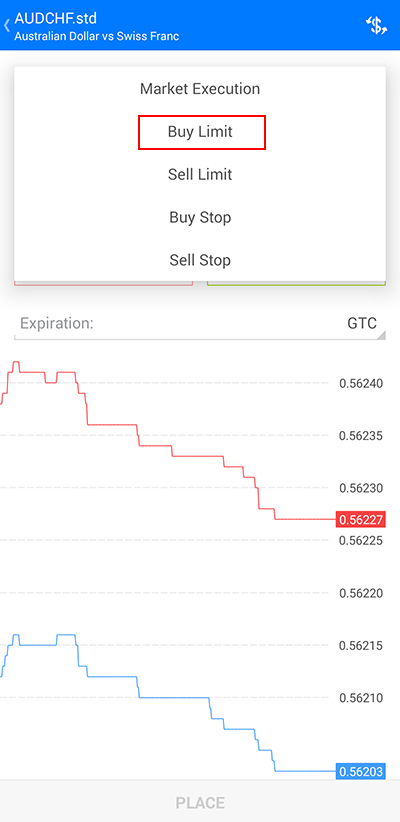
(2) Choose the order method from the order type.
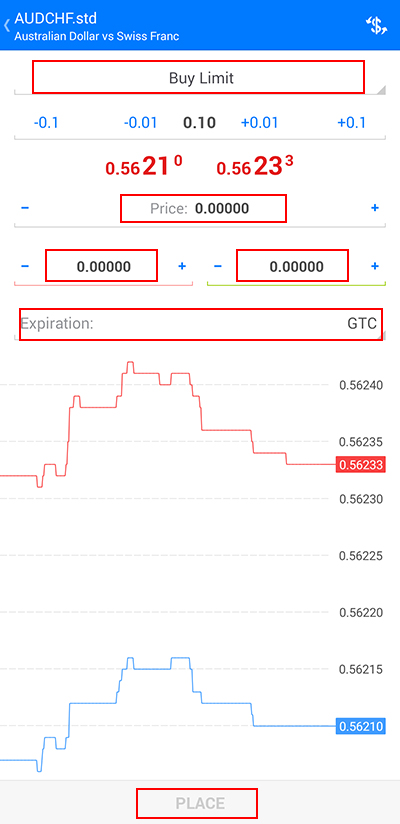
(3) Enter the limit/stop rate in "Price," check the validity period, and tap "Place Order."
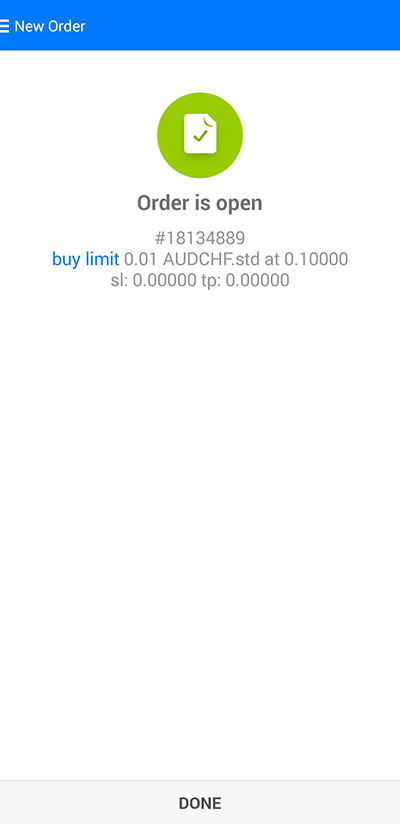
(4) The order will be sent successfully.
※Order Types: Market Execution, Buy Limit, Sell Limit, Buy Stop, Sell Stop.
※If placing a settlement order simultaneously, input the stop rate on the left and the limit rate on the right.
※To set an order expiration, specify the desired date and time in the "Expiration" field.
※Slippage settings cannot be configured.
※There are no restrictions on setting limit and stop values, but there are restrictions on modifications, cancellations, and settlements.
[5] Close Position by Market Execution
(1) Tap the position on the trade screen to display detailed information.
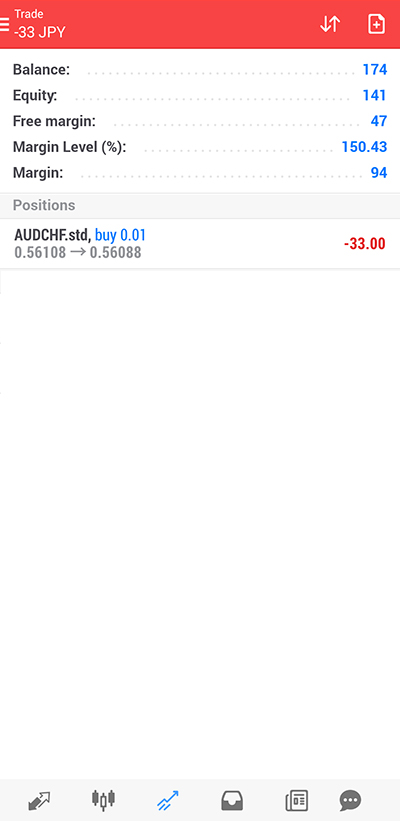
(2) Long-press the position and select "Close Order" from the pop-up menu.
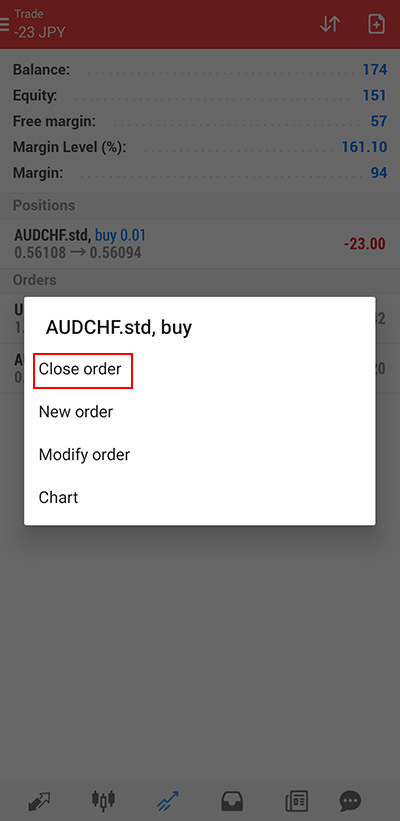
(3) Tap "Profit Close" or "Loss Close."
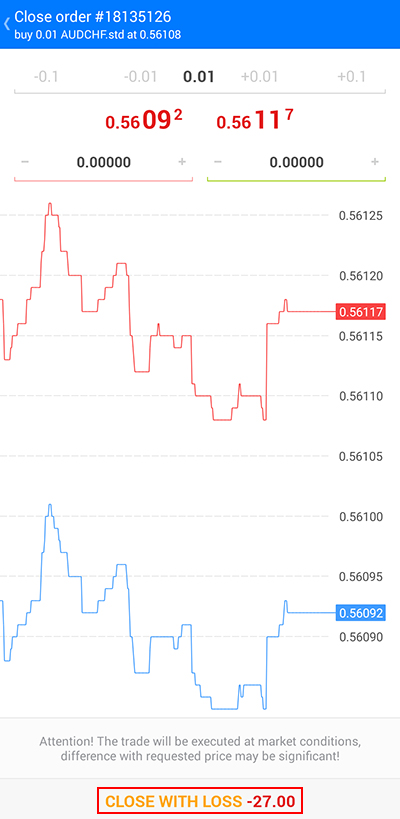
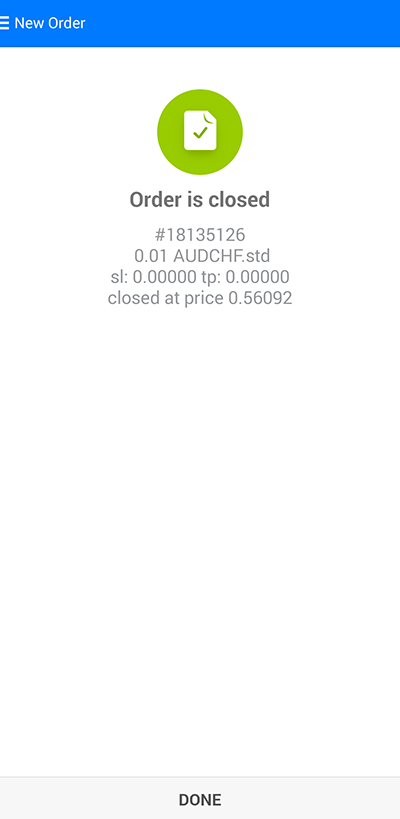
(4) The settlement will be completed.
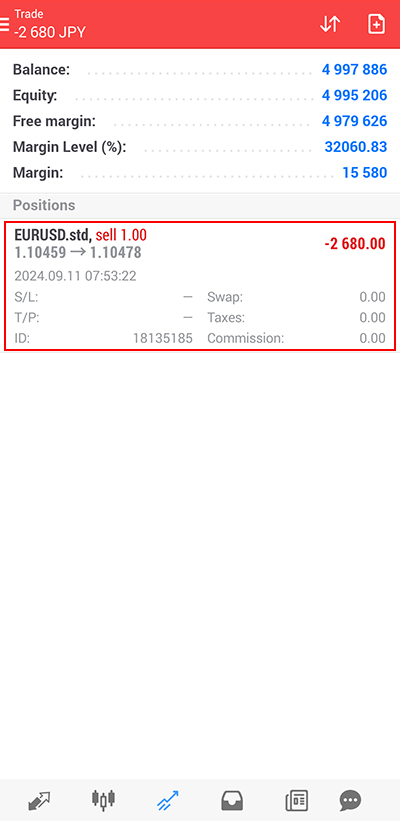
[6] Limit/Stop Orders on Positions
(1) Tap the position on the trade screen to display detailed information.
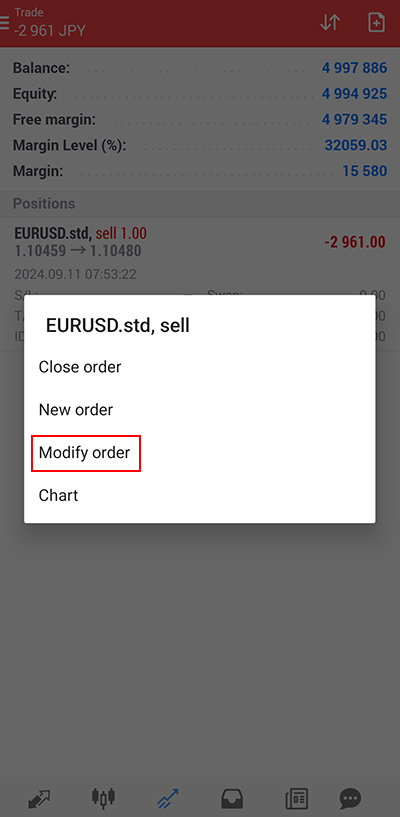
(2) Long-press the position and select "Modify Order" from the pop-up menu.
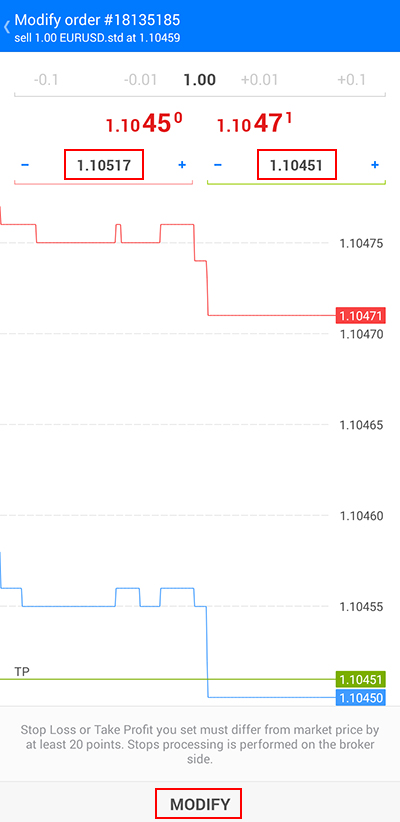
(3) Modify the stop or limit rate and tap "Modify."
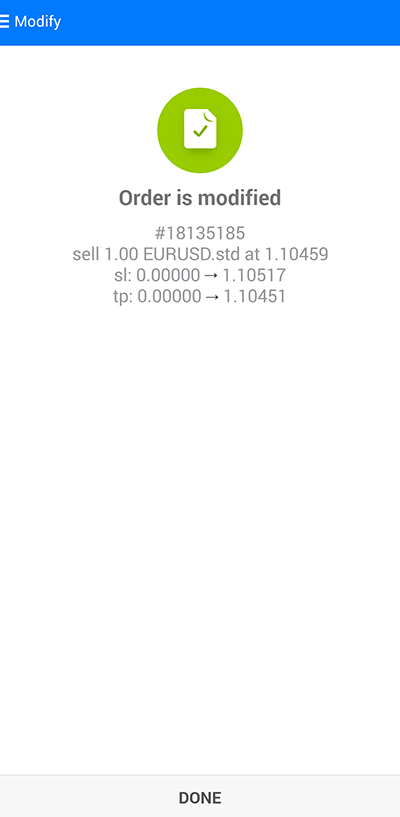
(4) The settlement will be completed.
[7] Delete/Modify Existing Orders
(1) Tap the position on the trade screen to display detailed information.
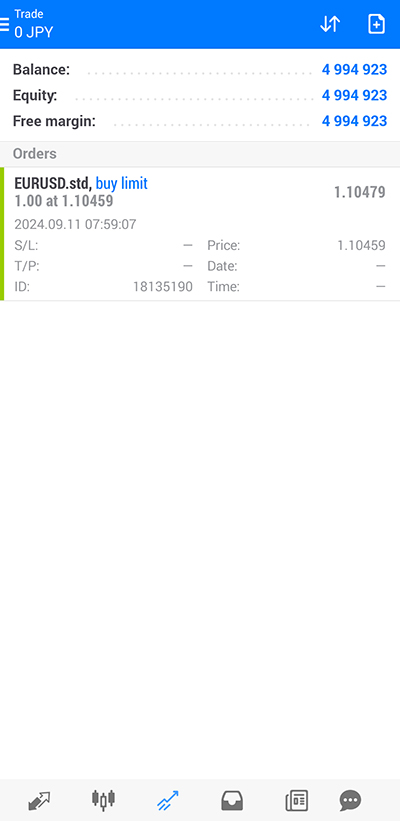
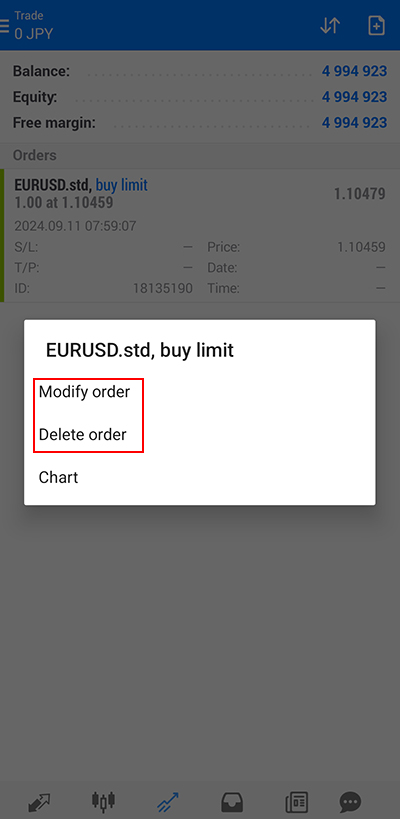
(2) Long-press the position and select "Modify Order" or "Delete Order" from the pop-up menu.
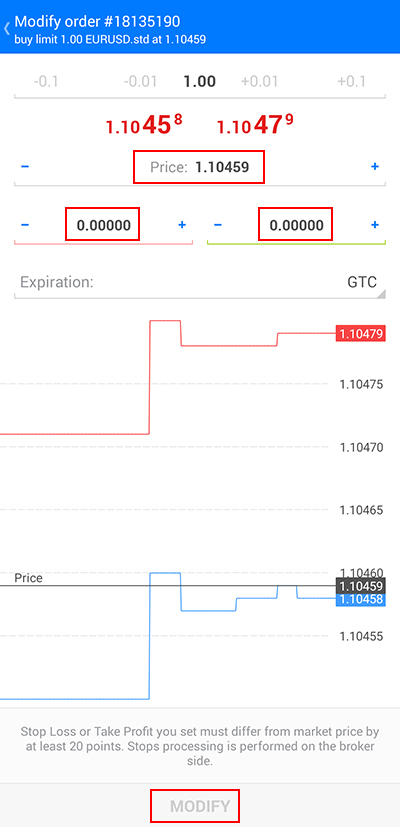
(3) If modifying the order, specify the new rate in "Price," "S/L," and "T/P," then tap "Modify."
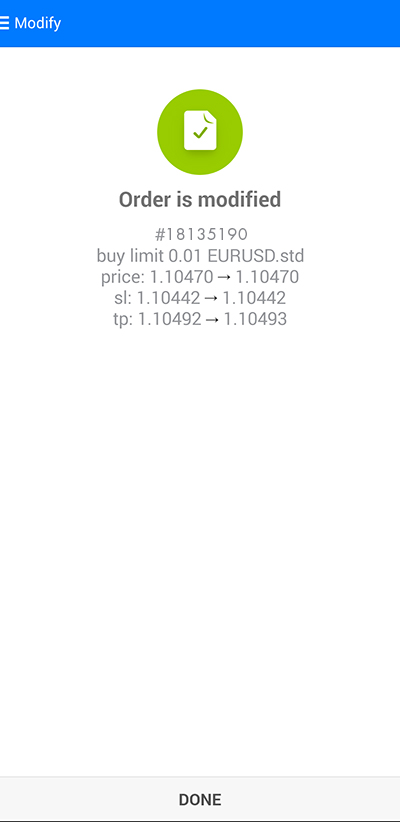
(4) The order modification will be completed.
※To modify a new limit or stop order, specify the new rate in "Price."
※To modify the stop rate or limit rate, enter the stop rate on the left and the limit rate on the right, then tap "SELL" or "BUY."
※To set an order expiration, specify the desired date and time in the "Expiration" field.
[Android] Chapter 4: How to Check History
Notes
- Smartphone data communication fees incurred during use are the responsibility of the customer.
- Depending on your smartphone model, the MT4 app may not be available.
- EA settings and modifications cannot be made from a smartphone.
- Please use in an area with a good communication environment. Depending on your communication environment, you may not be able to use the service or your orders may not be executed correctly.