Watch the video to learn how to use MT4
[1] In addition to being simple and highly operable, it reproduces an advanced trading environment with excellent chart analysis functions and a wide variety of indicators.
(1) How to Use the Quotes Screen
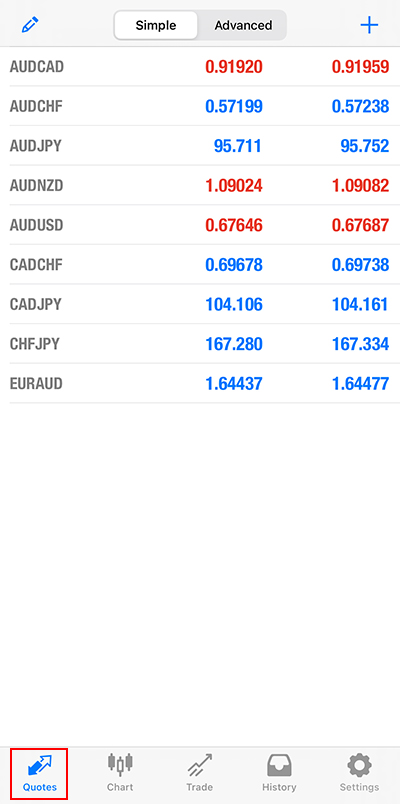
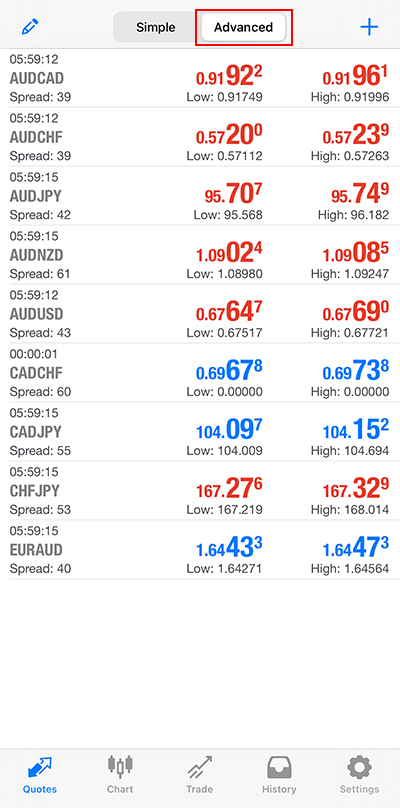
On the quotes screen, you can display the rates for each currency pair. By tapping the tabs at the top of the screen, you can switch between "Simple Mode" and "Detailed Mode."
In "Detailed Mode," you can view "Spread," "Low," and "High."
(2) Simple Mode
(3) Advanced Mode
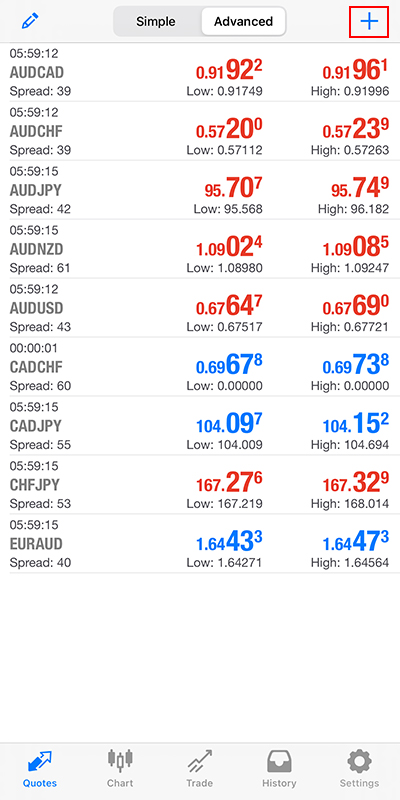
[2] Adding, Deleting, and Reordering Currency Pairs
(1) Tap the "+" at the top right of the screen.
(2) Tap the category of the currency pair you want to add.
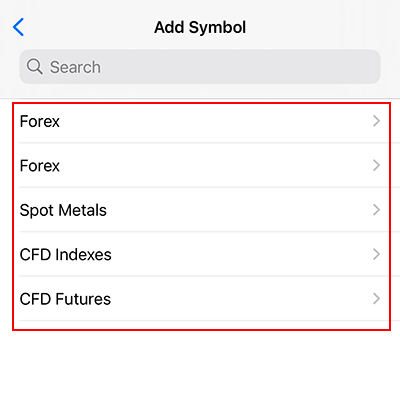
※Note: "Forex" will be displayed twice; the second "Forex" from the top is a list of currency pairs by Forex account type.
※Note: The content displayed may vary depending on the app version or device.
(3) Tap the "+" for the currency pair you want to display and then tap "Done."
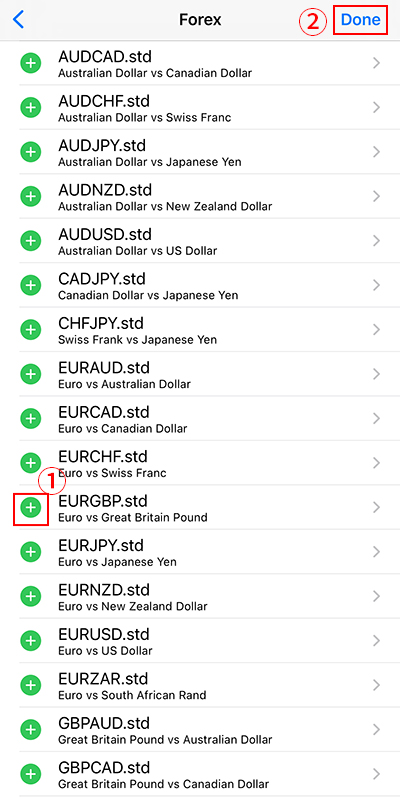
※Example: Adding EURGBP.std.
※When you tap "+", it will disappear from the list but will be added to the quotes screen.
※If you tap the text instead of "+", the details of the currency pair will be displayed.
(4) The desired currency pair has been added.
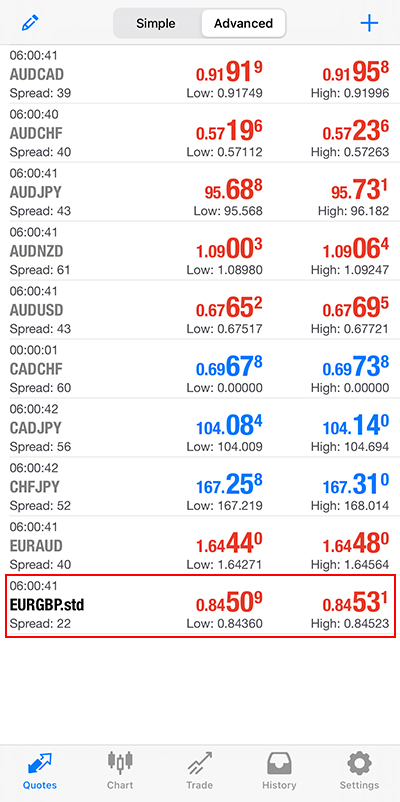
[3] Deleting Currency Pairs
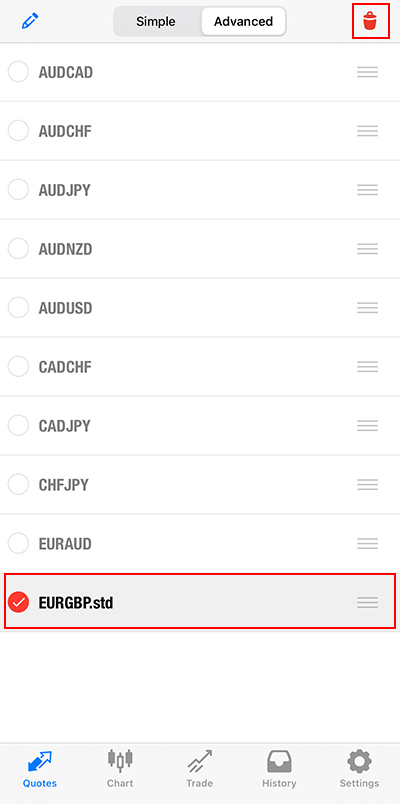
(1) Tap the top left of the screen.
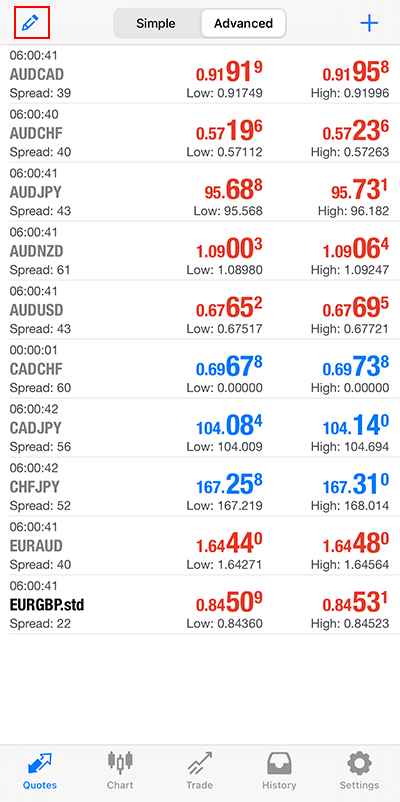
(2) Select the currency pair you want to delete and tap the top right to complete deletion.
[4] Reordering Currency Pairs
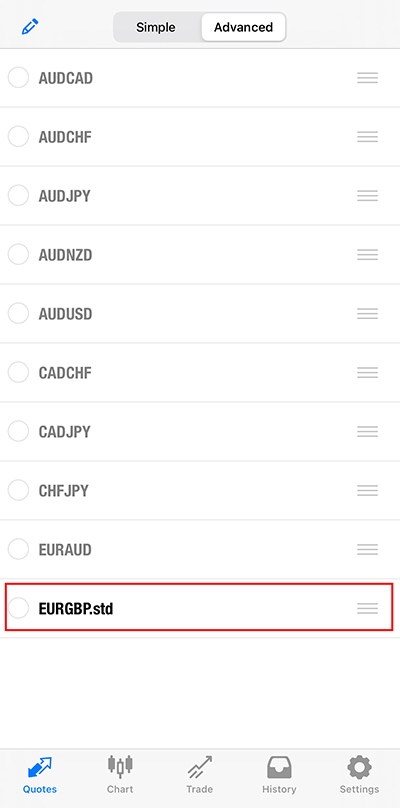
(1) Press and hold on the right side, then move up or down to reorder.
[5] Chart Screen
(1) Tap the chart display button at the bottom of the screen.
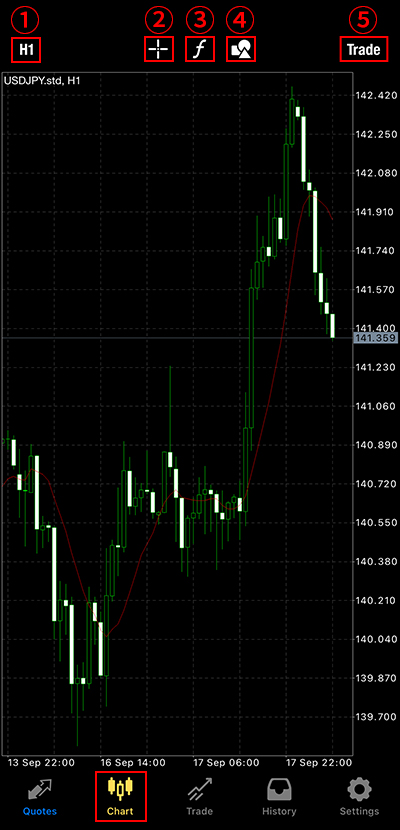
① Chart Time Frames
You can display 1-minute, 5-minute, 15-minute, 30-minute, 1-hour, 4-hour, daily, weekly, and monthly charts.
② Crosshair Line
You can view detailed information such as price, time, high, and low.
③ Indicators
You can insert and edit parameters for indicators.
④ Objects
You can display objects such as trend lines.
⑤ Trade
Switches to the trading screen.
[6] How to Select Indicators
The iPhone MT4 allows you to select from 30 types of indicators.
(1) Tap the indicator button on the chart screen.
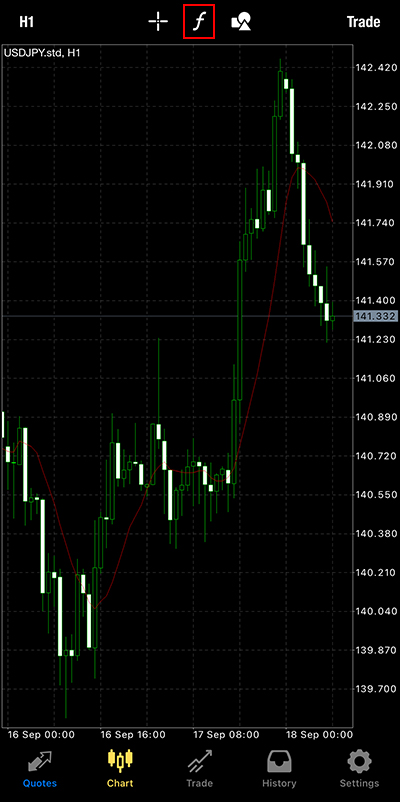
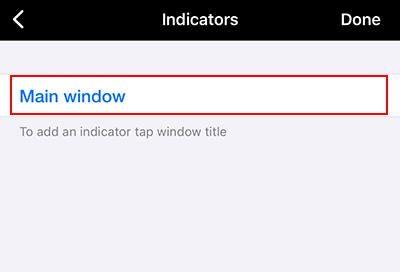
(2) Tap the main window.
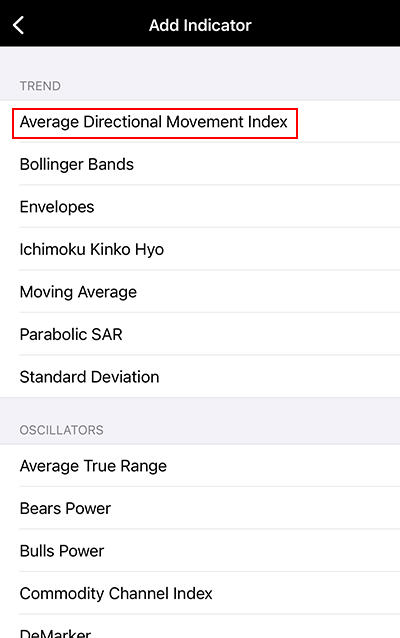
(3) Select an indicator.
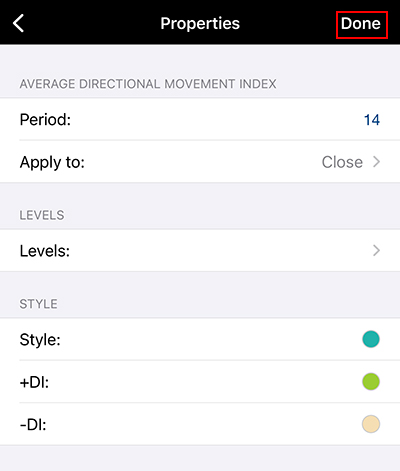
(4) After entering the parameters, tap "Done" to complete the insertion.
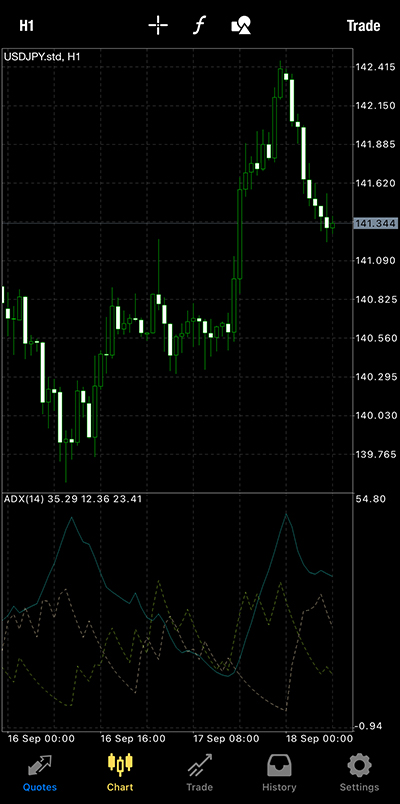
(5) The insertion into the chart is complete.
[7] How to Delete Indicators
(1) Tap the indicator on the chart screen.
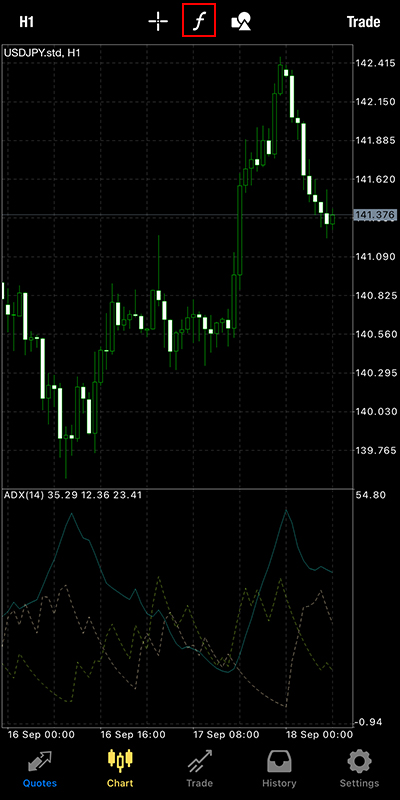
(2) Tap "Edit" and then tap the indicator you want to delete.
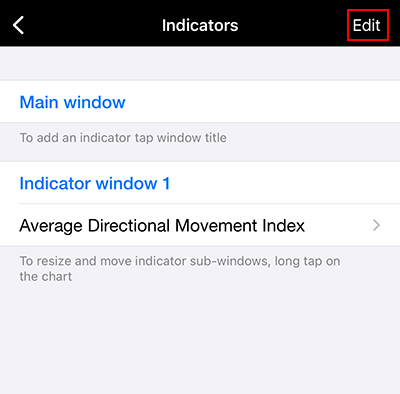
(3) Tap "Delete" and then "Done."
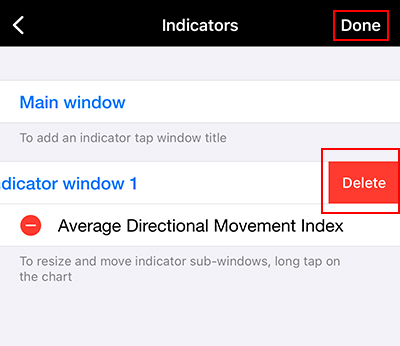
(4) The indicator has been deleted.
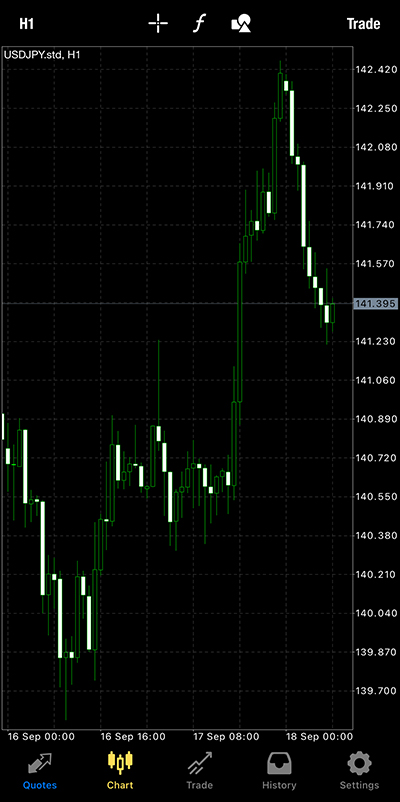
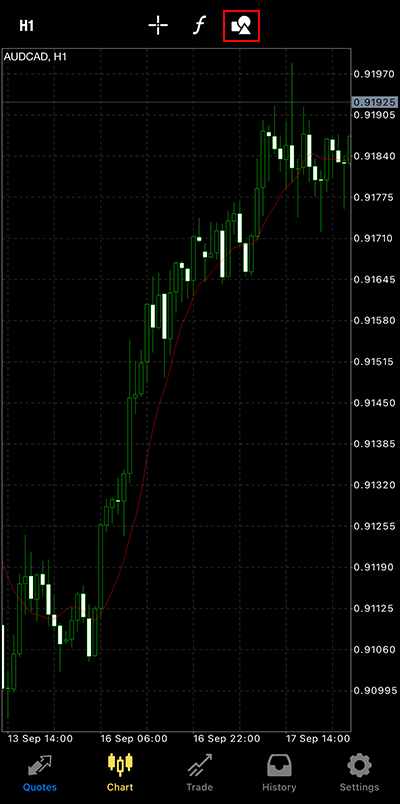
[8] How to Display Trend Lines
(1) Tap the objects button on the chart screen.
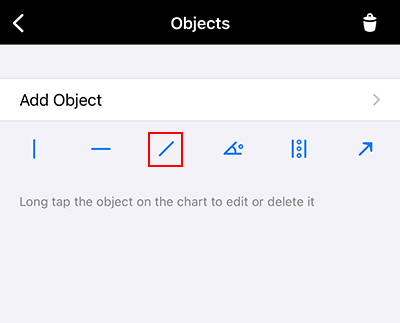
(2) Tap the object you want to display.
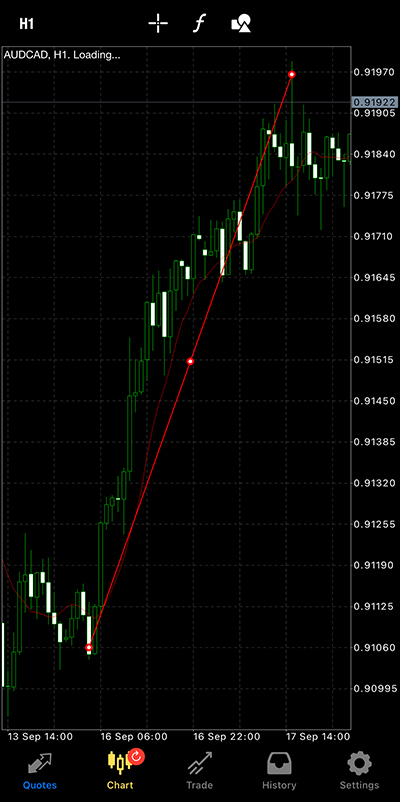
(3) Trace with your finger where you want to draw on the screen to create a "Trend Line."
[9] Customizing the Chart Screen
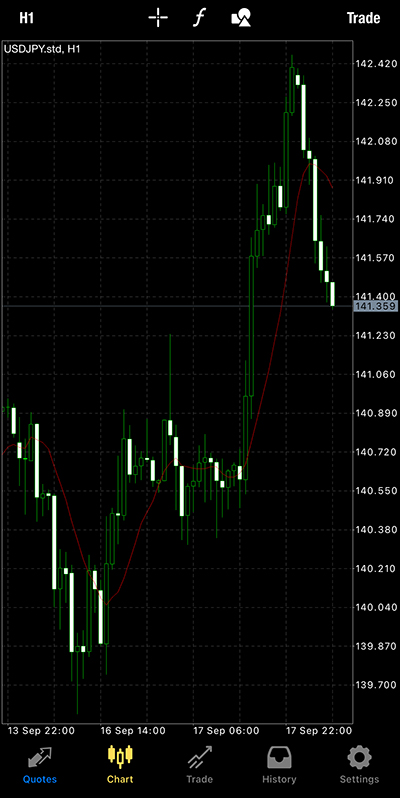
(1) Tap the chart screen once.
(2) Tap "Settings."
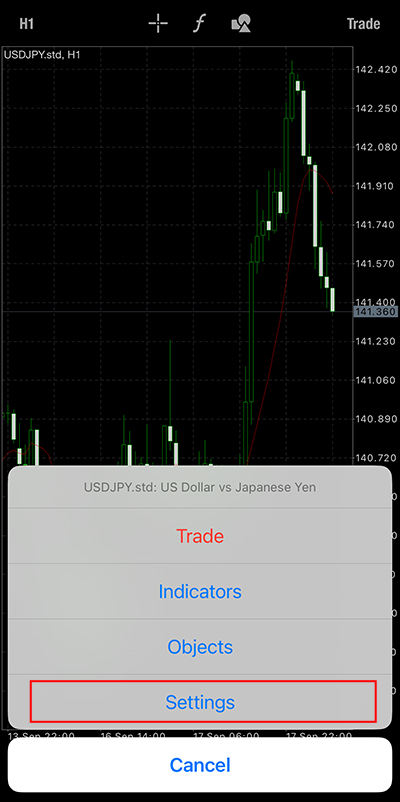
(3) The settings screen will be displayed.
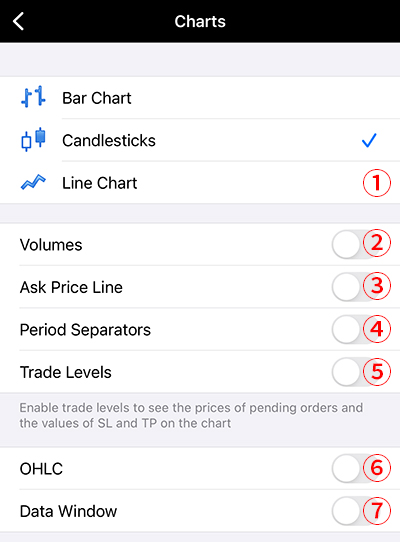
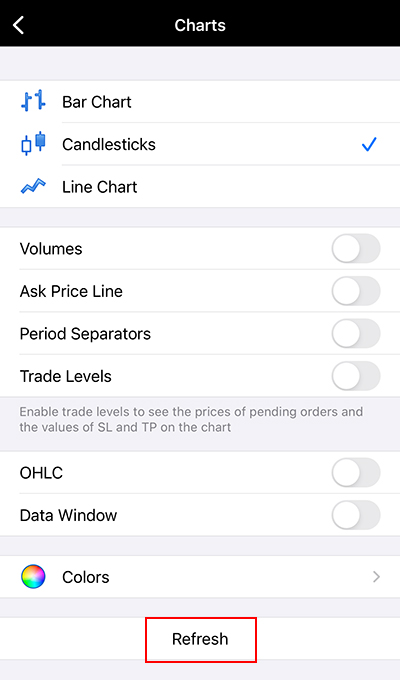
① You can change the chart format.
② You can display trading volume.
③ You can display the ask price.
④ You can display period separators.
⑤ You can display the price and quantity of your positions on the chart.
⑥ You can display the OHLC values in the upper left of the chart.
⑦ You can display the indicator values.
(4) Once all settings are complete, tap "Update" to apply the settings.